
Coming soon to iPhone, iPad and Android
Snap it. Plan it. Get it done.
Capture it once. Turn it into what you need. Six useful tools, one simple app.
Snap a photo, choose one from your library or record audio. Review the text, then turn it into a checklist, a plan, a note, a budget, study cards or a prompt that is ready to copy. It all happens on your device.
- App StoreComing soon
- Google PlayComing soon

- No app account
- Content stored on your device
- No ads or tracking
- One time price for local tools
Six useful tools, one simple app
Every tool works from the same captured source. Here they are in the order you’ll find them in the app, and you can drag them into your own order.
-
Checklist
Turn a message or photo into tasks you control.
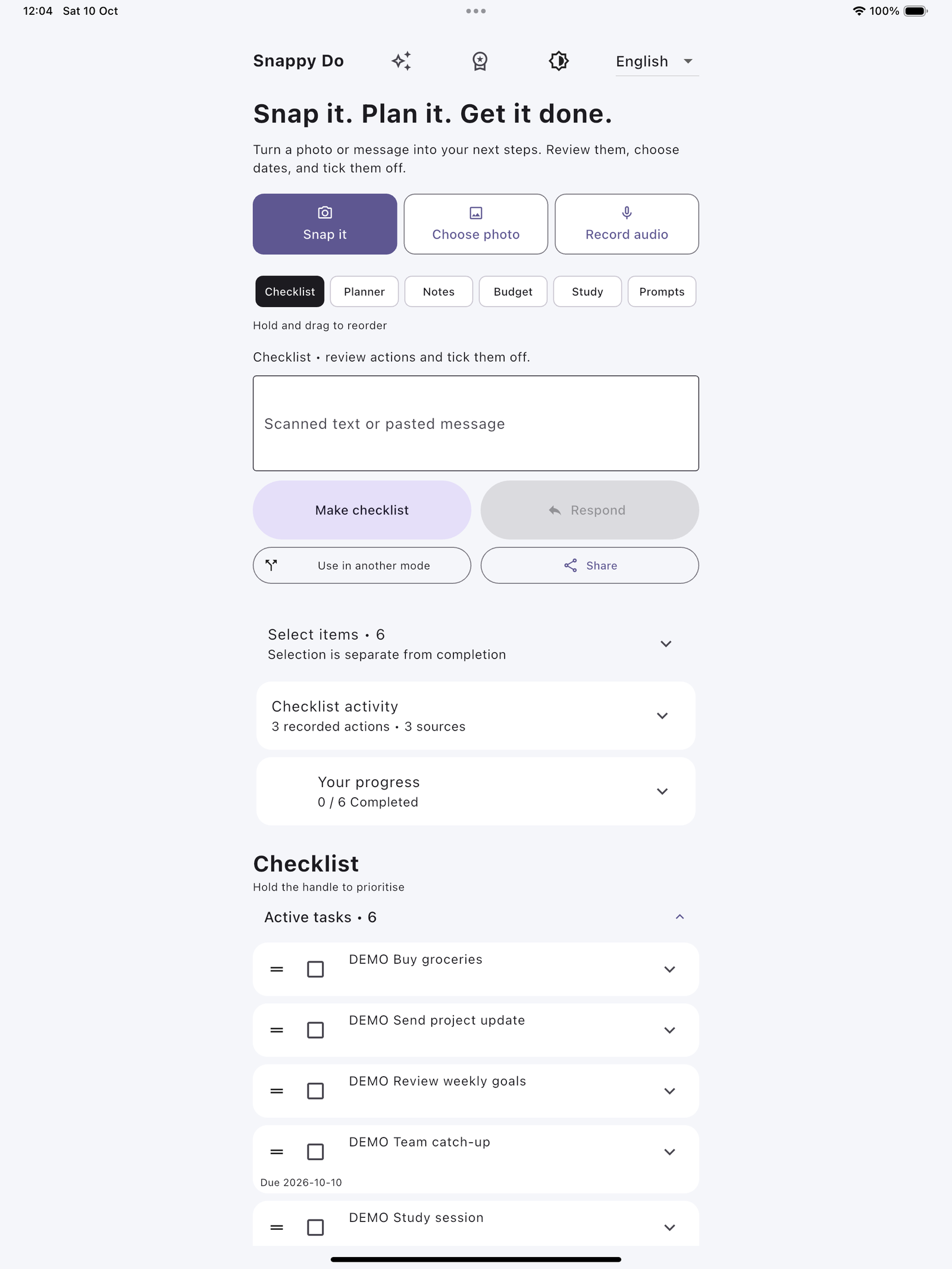
- Review suggested tasks. Nothing is added until you say so
- Approve a task to enable its tick box
- Tick tasks off and track your progress
-
Planner
Put approved tasks on dates.
- Dated and recurring tasks, with optional reminders
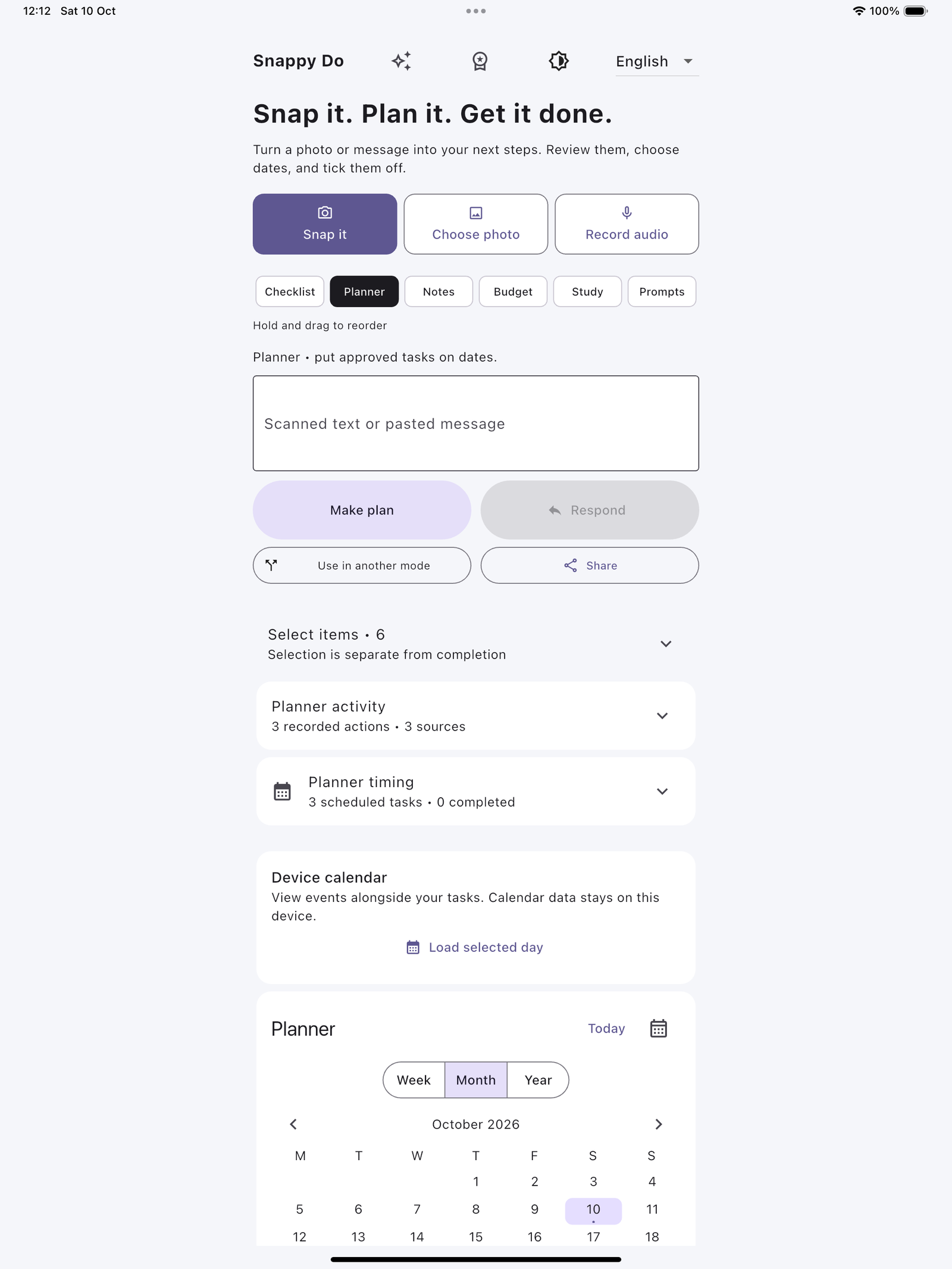
- Switch between Week, Month and Year views
- See your device calendar alongside, read only and never edited
-
Notes
Keep the original, exactly as you captured it.
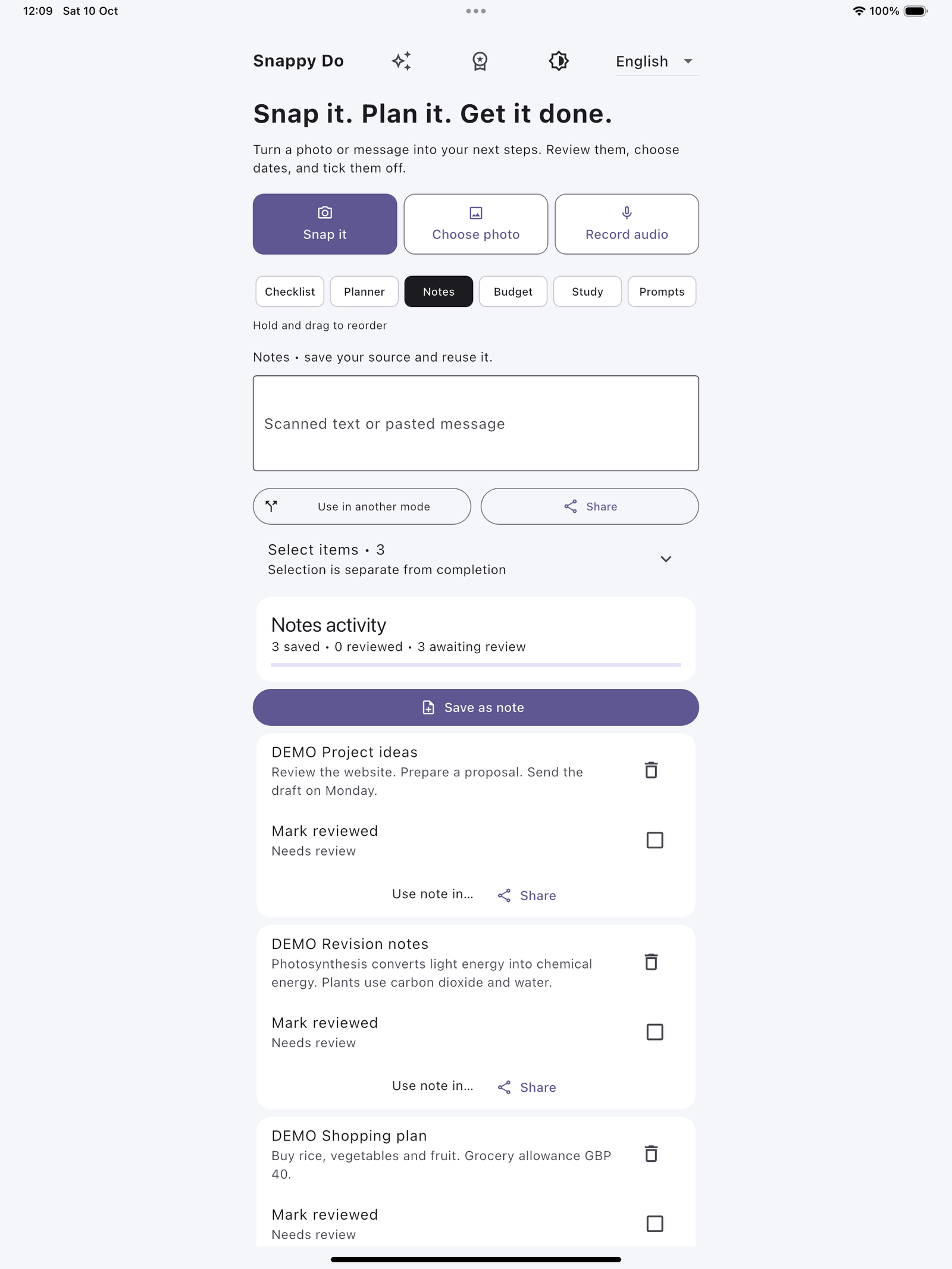
- Save captured, typed or transcribed text
- Mark a note reviewed. Editing it reopens review
- See where each note has been reused
-
Budget
Named budgets, each in its own currency.
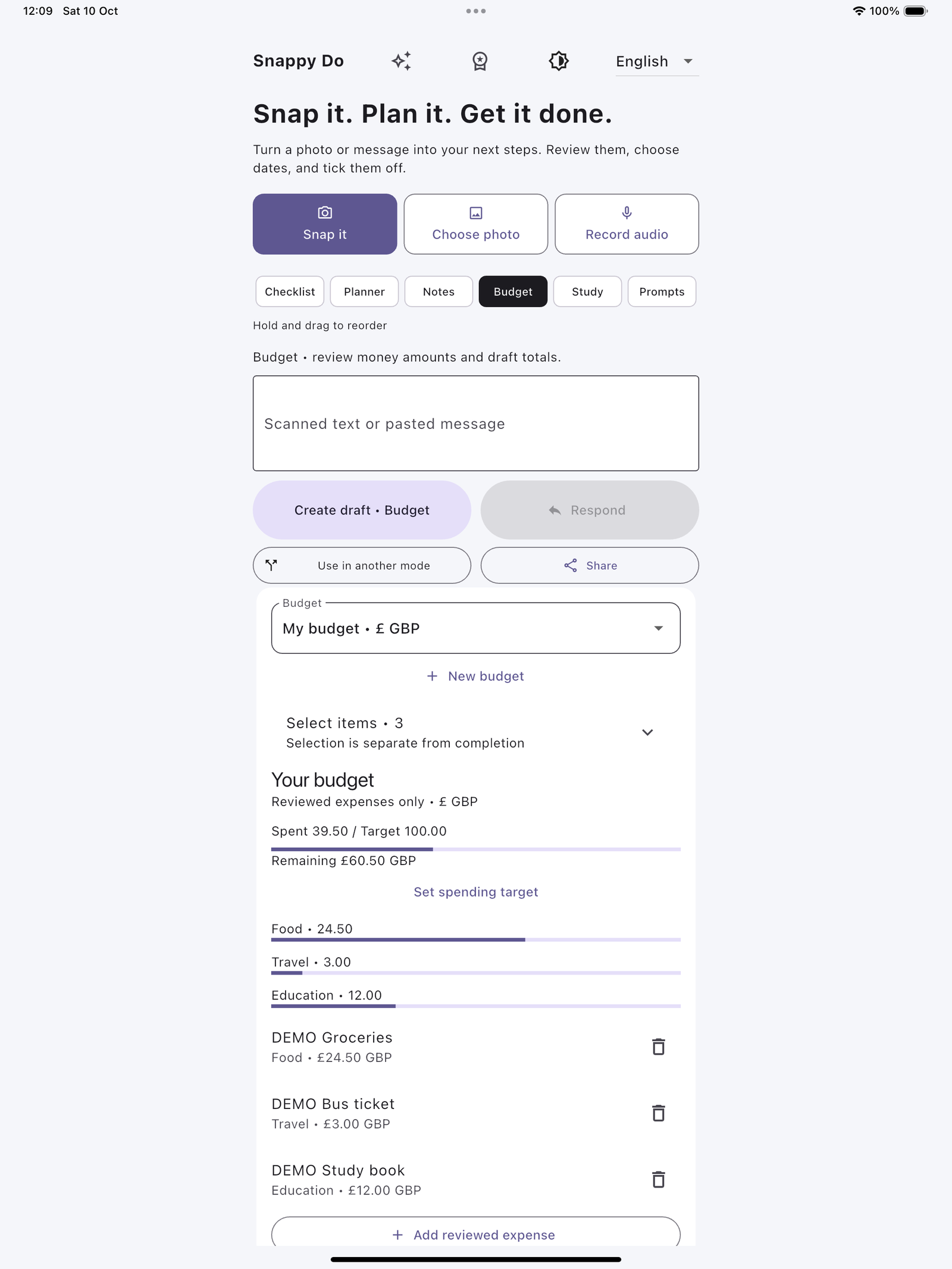
- Set a spending target and add expenses by category
- See totals and what’s remaining at a glance
- Deleted expenses go to a Trash you can restore from
No bank connection and no currency conversion. Different currencies are never added together.
-
Study
Study cards built from your own source.
- Cards are made from what you captured, with no invented facts
- Tap a card to reveal the answer from your source
- Mark cards reviewed as you go
Review shows the cards you’ve marked, not a test score or mastery level.
-
Prompts
Package your source into a request that is ready to paste.
- Reusable templates with your source text attached
- Copy it and paste it into the AI tool you already use
- The app doesn’t send anything to an AI provider
From capture to action
Start with whatever you’ve got, such as a letter, a whiteboard, a booking confirmation or a voice memo, and end with something you can act on.
Capture
Snap a photo, choose one from your library or record audio. You can also type or paste text.
Review
Text is pulled out of photos on your device. Check it and correct anything before you use it.
Choose a tool
Make a checklist, plan dates, save a note, draft a budget, build study cards or copy a prompt.
Get it done
Approve and tick off tasks, set reminders, and share results through your device’s share sheet.
About audio. Recordings stay on your device and you can play them back. On supported iPhones and iPads, saved recordings can be transcribed on your device, depending on your device and language. Transcribing saved recordings isn’t currently available on Android. You can still record, play back, and type or paste a transcript.
See each step in the app
Real screenshots from the current app, labelled by device. Choose a step, or use the arrow keys once a step button has focus.
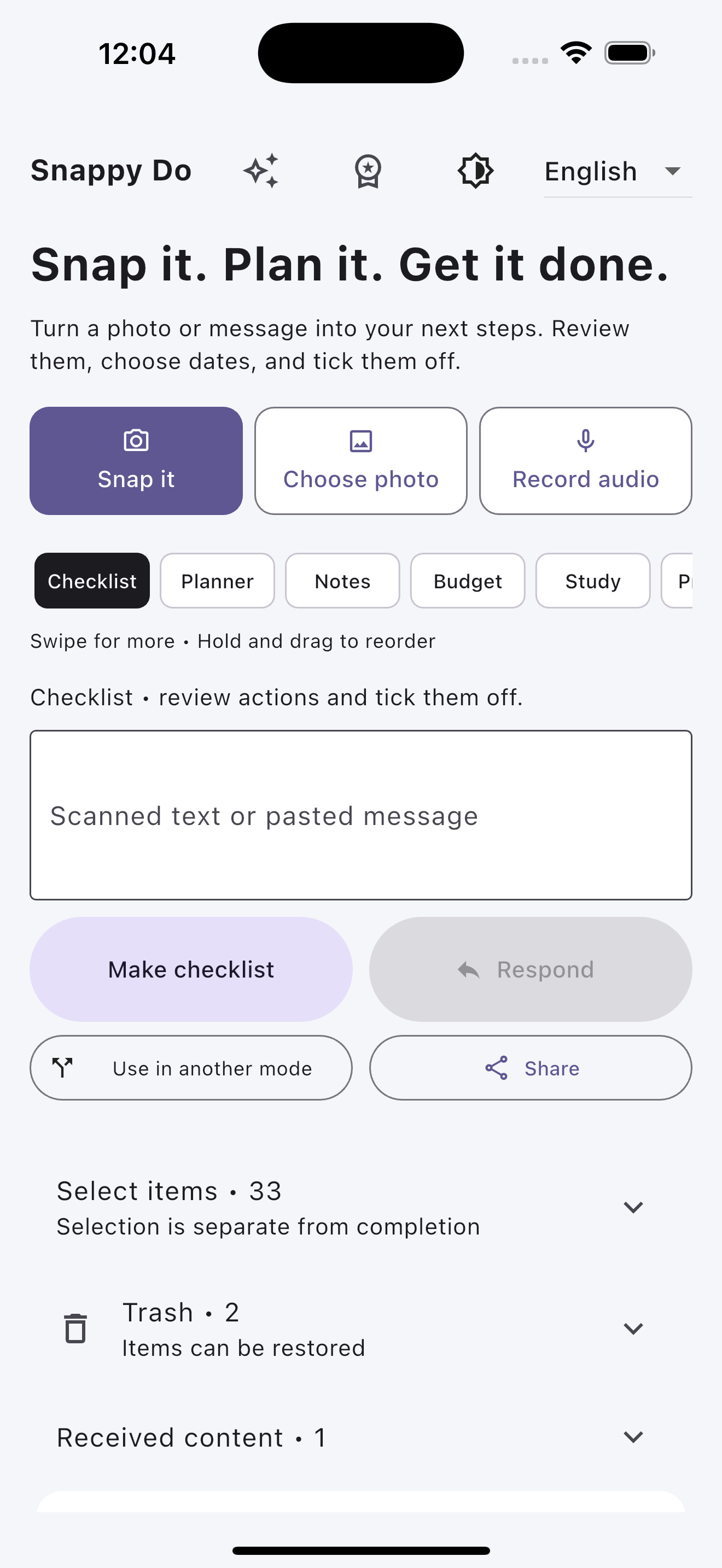
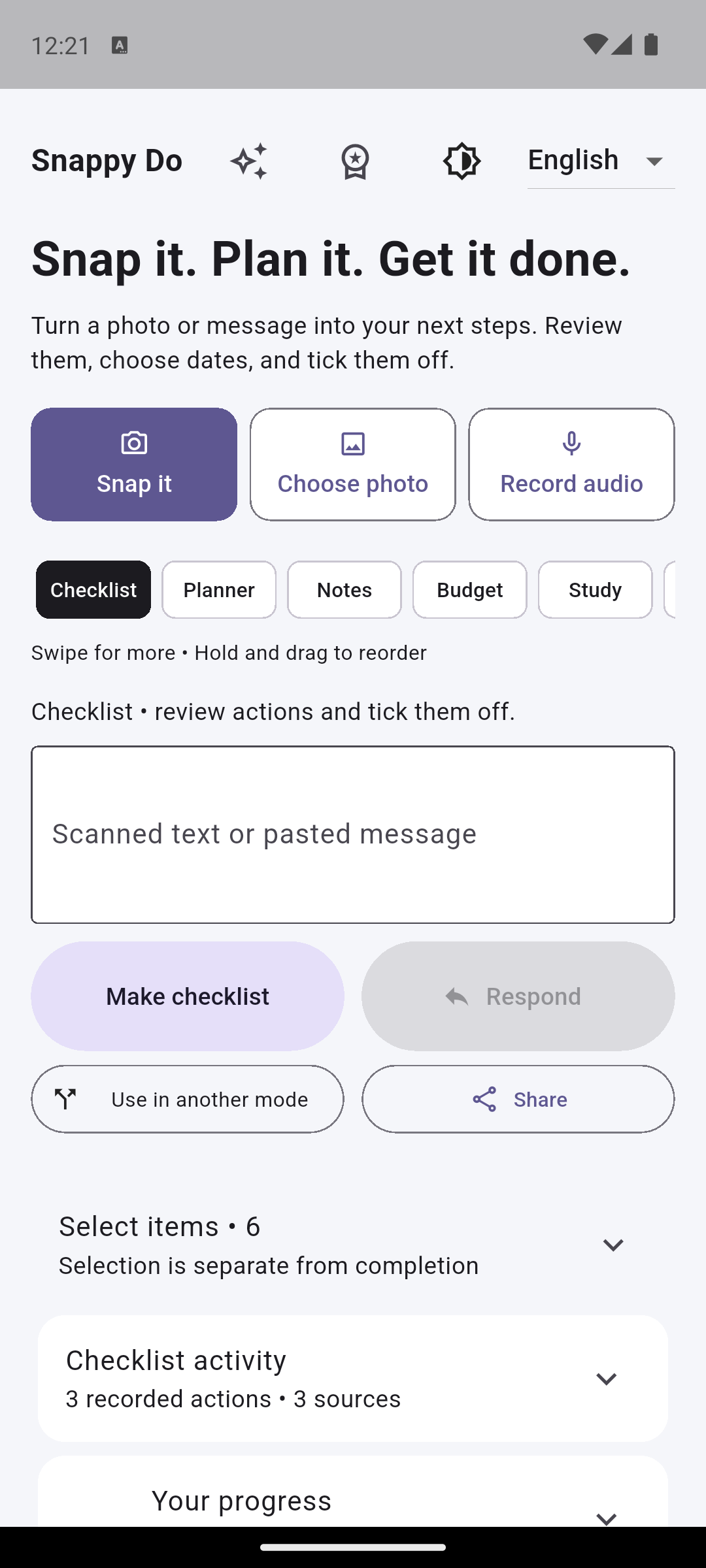
Capture or paste text
Snap a photo, choose one from your library, record audio, or paste text into the box.


Choose a mode
Pick Checklist, Planner, Notes, Budget, Study or Prompts. You can hold and drag the tabs to reorder them.

Create and save
Make a checklist, save a note, or add reviewed expenses to a named budget.


Use in other modes
Use in another mode sends an item to one other mode, several, or all of them, inside the app. Share is different. It opens your device’s share sheet so you can send content outside the app.

Activity overview and history
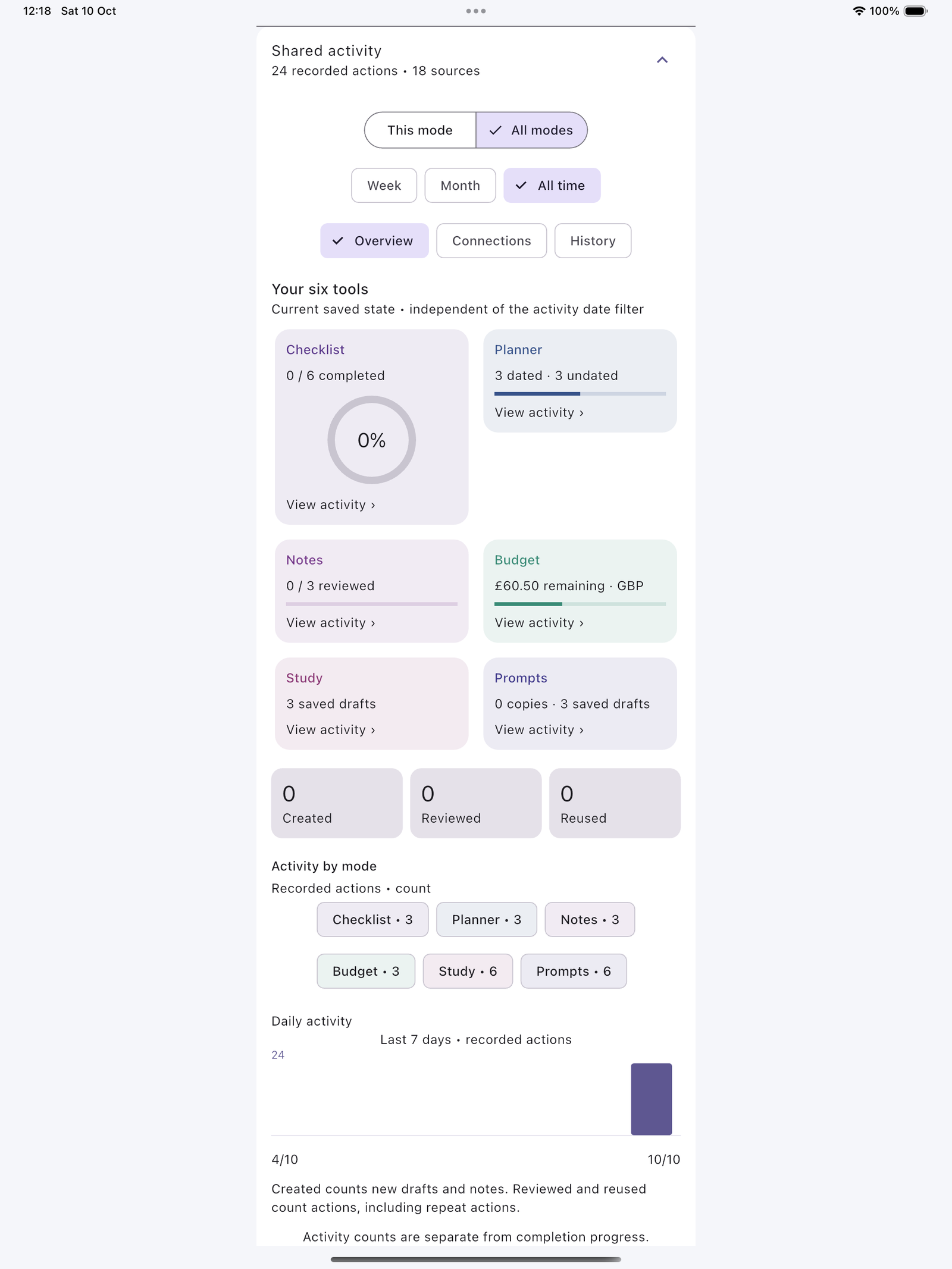
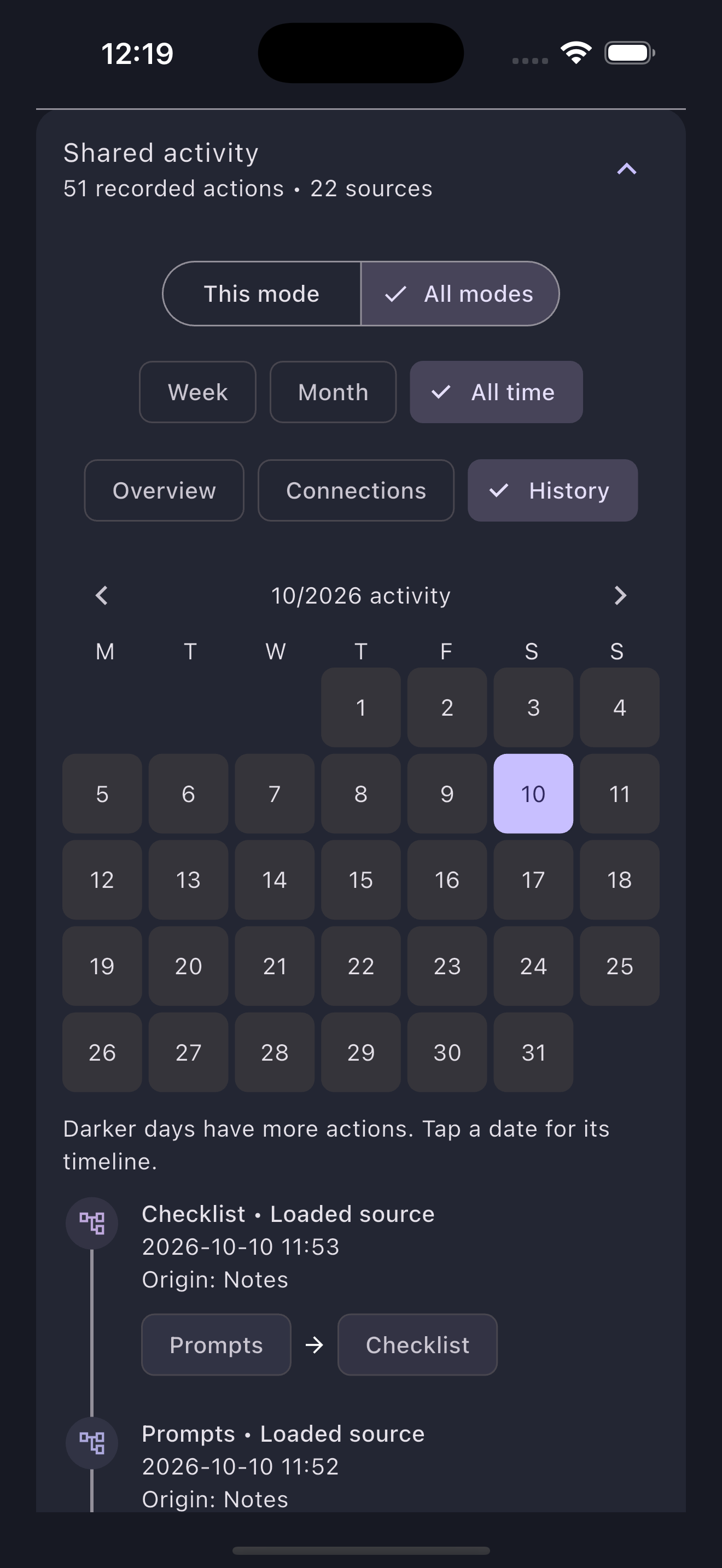
See what’s saved in each tool, your activity by date, and a dated timeline of where content came from.


Capture it once. Use it everywhere.
Send anything you’ve captured to one other tool, several, or all of them. Each copy keeps a link to its original source, and moving content between tools is recorded separately from the results you create, so you can always see where something came from.
- Your six tools at a glance. A summary of what’s saved in each tool right now.
- Activity by date. Counts of what you did, with daily columns for the last seven days.
- Connections. See how content moved from one tool to another.
- History. A calendar where busier days look darker, with a dated timeline for each day.
Activity counts show what you did, not how much is finished. Completion only comes from tasks you’ve ticked, and budgets in different currencies are never combined.


Select in bulk
Every tool lets you select several items at once to share, reuse or tidy up.
Share your way
Sharing opens your device’s share sheet, so you choose exactly where things go.
Trash you can undo
Deleted items go to that tool’s Trash, where you can restore them.
Budgets that keep currencies honest
Create named budgets for different purposes. Each has its own currency, spending target and expenses by category, with the total spent and what’s left shown in that currency.
- Amounts captured from a photo stay as drafts until you confirm them.
- A budget’s currency is fixed once it has expenses (including any in Trash), so totals always make sense. Need another currency? Create another budget.
- No bank sync and no currency conversion.

Pay once. Keep your tools.
No subscription is needed for the local tools.
£7.99one time purchase
For all six local tools, on the App Store and Google Play.
- Checklist, Planner, Notes, Budget, Study and Prompts
- Photo text capture and audio recording
- Reuse between tools, activity views and recoverable Trash
- No app account and no ads
Purchases are handled by Apple or Google through your store account. Prices outside the UK will be shown in your store.
Availability
- App Store and Google Play Coming soon
- Snappy Do It isn’t on public sale yet. We’re finishing store submission, and download links will appear here once the listings are live.
- AI features Coming soon
- Drafts assisted by AI and an optional AI subscription are planned. They’re not in the app today and aren’t included in the £7.99 price.
Your stuff stays on your device
Snappy Do It doesn’t need an account and doesn’t send your notes, tasks, budgets, recordings or activity history to us.
Read the privacy policy- Stored locallyYour content and your activity in the app are saved on your device.
- Permissions you controlCamera, photos, microphone, calendar and notifications are only used for the features that need them.
- No ads or trackingThe app has no advertising and no third party analytics.
- You choose what to shareSharing and copying only happen when you tap Share or Copy.
Questions, answered
When can I download Snappy Do It?
Not quite yet. The app isn’t publicly available on the App Store or Google Play. We’re finishing store submission, and the “Coming soon” buttons on this page will become download links once the listings are live.
What do I get for £7.99?
£7.99 is the UK launch price, paid once through your app store. It covers all six local tools: Checklist, Planner, Notes, Budget, Study and Prompts. It also includes photo text capture, audio recording, reuse between tools, activity views and Trash. AI features aren’t included; they’re coming soon.
Do I need to create an account?
No. Snappy Do It works without an app account, and your content is stored on your device.
Does the app use AI?
Not today. Text is pulled out of photos using recognition that is built into your device, and supported iPhones and iPads transcribe recordings on your device. The Prompts tool lets you copy a request, ready to paste into an AI tool you already use. The app doesn’t send it anywhere. AI features inside the app and an optional AI subscription are coming soon.
Can I transcribe recordings on Android?
Not at the moment. On Android you can record and play back audio, and type or paste a transcript yourself. On iPhone and iPad, transcription on your device works where your device and language support it.
Does Budget connect to my bank?
No. There’s no bank sync. You add and confirm expenses yourself, and each budget keeps to one currency. There’s no currency conversion, and amounts in different currencies are never added together.
Will Planner change my calendar?
No. If you allow calendar access, Planner shows your device calendar events alongside your tasks, read only. Your calendar isn’t edited.
What happens to things I delete?
Deleted items go to that tool’s Trash, where you can restore them. Removing the app removes its local storage, subject to your device’s backup and restore settings.
How do I get help?
Email support@snappydoit.com, or visit the support page for answers to common questions.

Coming soon to iPhone, iPad and Android
Snap it. Plan it. Get it done. One time purchase, with a UK launch price of £7.99. Store links will appear here as soon as the listings are live.
- App StoreComing soon
- Google PlayComing soon